DroidM8
Bridge your Android phone with your Mac. Notification mirroring, clipboard sync, and more — all over your local network. No cloud, no account.
What it does
Notification mirroring
See Android notifications on your Mac as native banners. Reply, dismiss, and act without picking up the phone.
Clipboard sync
Copy on one device, paste on the other. End-to-end encrypted with a PIN you control.
Local-network only
No cloud, no account, no telemetry. Your data never leaves your LAN.
Rules & suppression
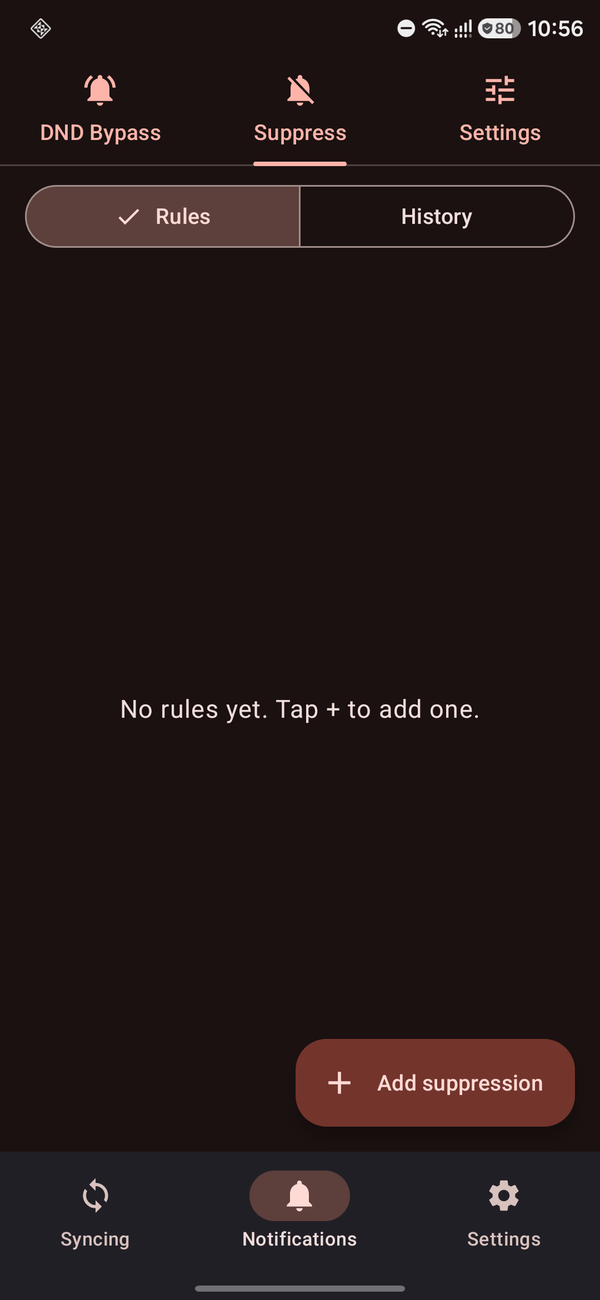
Per-app blacklists, suppression rules, and history — keep noisy apps out of your flow.
Download DroidM8
Install both apps and pair them with a PIN.
Install Droid M8 for Mac
Paste this in Terminal (Applications → Utilities, or Spotlight → “Terminal”) and press Return. It downloads the app, verifies its checksum, installs it to /Applications, and launches it.
curl -fsSL https://tech-m8.solutions/downloads/droidm8/install.sh | shNo Gatekeeper warning: a curl download isn’t quarantined the way a browser download is, so the app — though not signed with an Apple Developer ID — launches without the “Apple could not verify…” block.
Inspect first: install.sh · checksums.txt
Get it on Google Play
Install on Android 9+ phones via the Play Store. Auto-updates roll out as soon as we ship a new release — no manual re-installs.
Open Play StoreUninstall Droid M8
curl -fsSL https://tech-m8.solutions/downloads/droidm8/uninstall.sh | shRemoves the Droid M8.app bundle from your Applications folder. Your pairing PIN, clipboard history, and rules live with the app and are removed with it. On Android, uninstall via Settings → Apps.
What’s new
v0.1.02026-07-15- Initial public release. Bridge your Android phone with your Mac over the local network — notification mirroring, clipboard sync, per-app DND-bypass rules, and a suppression list, all end-to-end encrypted with a PIN you control.
- macOS menu-bar agent with a single one-line installer (no Apple Developer ID required — see the setup guide for details).
- Optional Shizuku path for Samsung One UI to read the clipboard in the background.
Setup walkthrough
Pair the two apps in a few minutes. Screenshots from the real app.
- 1
Install both apps
Grab the APK on your Android phone and install the Mac app with the one-line Terminal command below. The Android app needs Android 9+. The Mac app needs macOS 13+ and runs from the menu bar.
Jump to downloads - 2
Open Droid M8 on your Mac
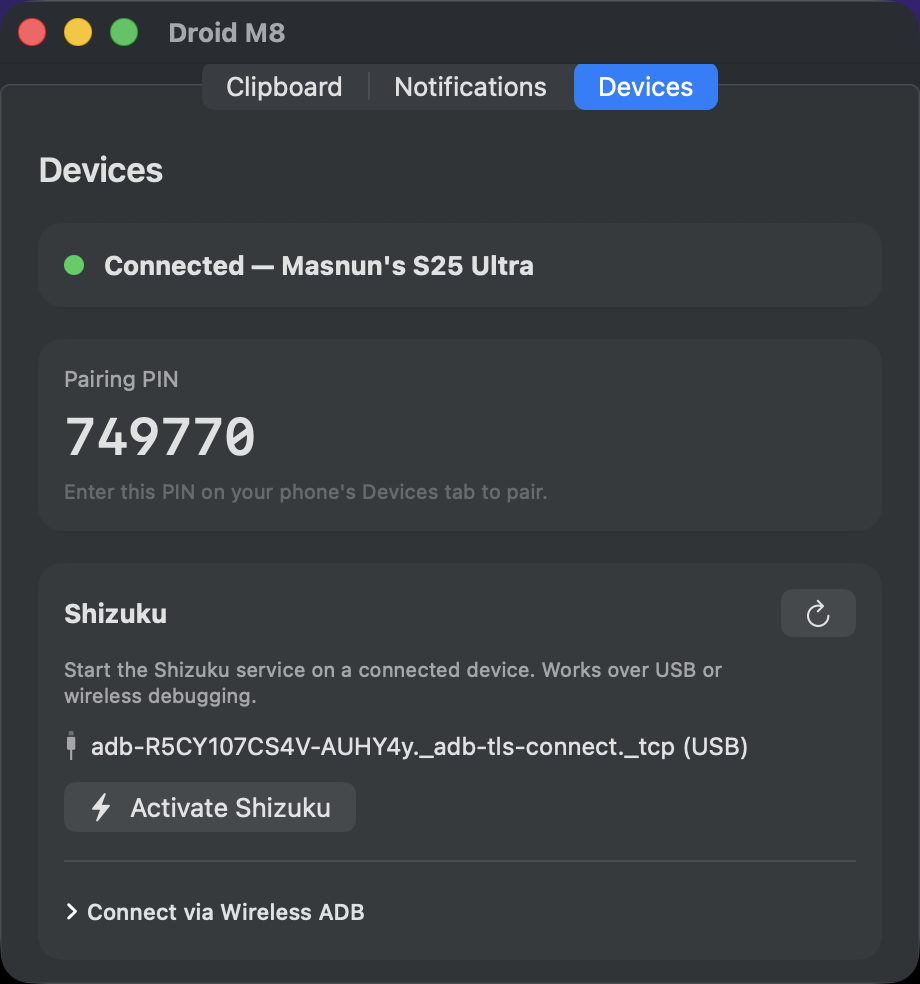
First launch opens a window with three tabs. Go to Devices — you'll see a 6-digit pairing PIN. Keep this window open; the phone needs that number next.
- 3
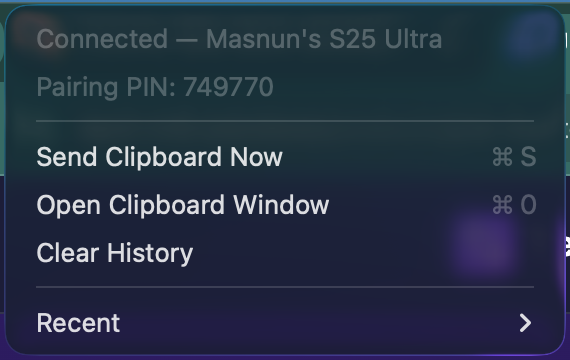
Find the app from your menu bar
Droid M8 lives in the menu bar. Click the icon any time to reopen the window, send the clipboard, or jump to recent items. The pairing PIN also shows under Clipboard in the main menu.
- 4
Pair from your phone
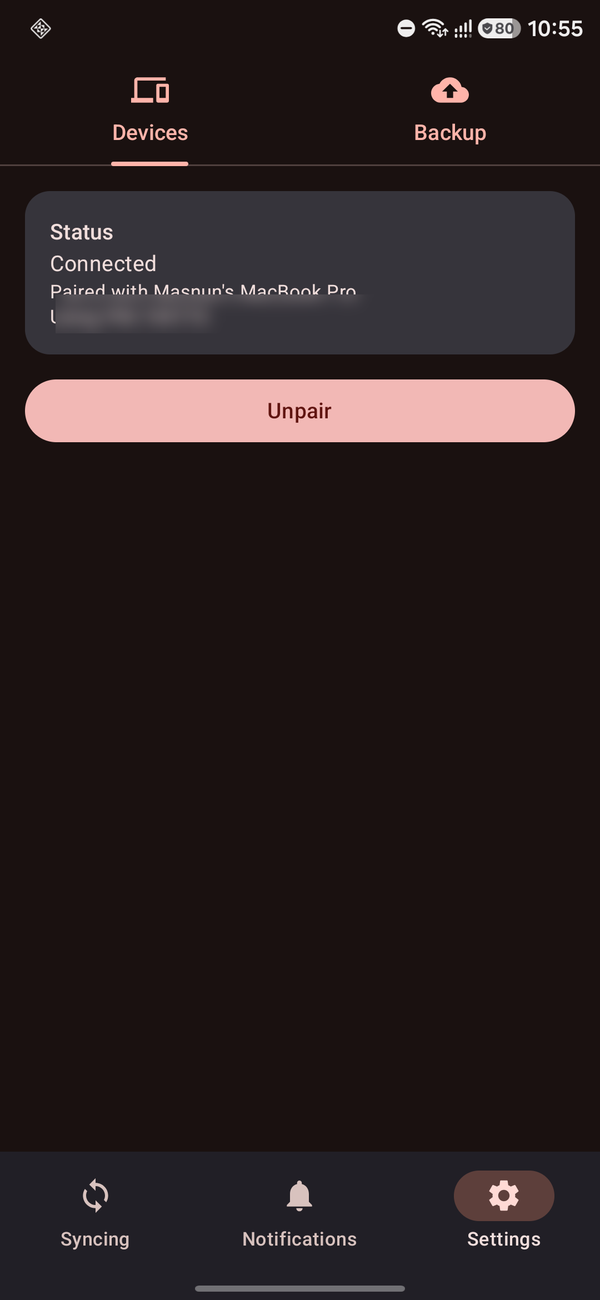
Open Droid M8 on your phone, tap Settings (bottom-right), then the Devices tab. Type in the PIN from your Mac. Status flips to Connected once the two apps agree on the PIN.
- 5
Grant Android permissions
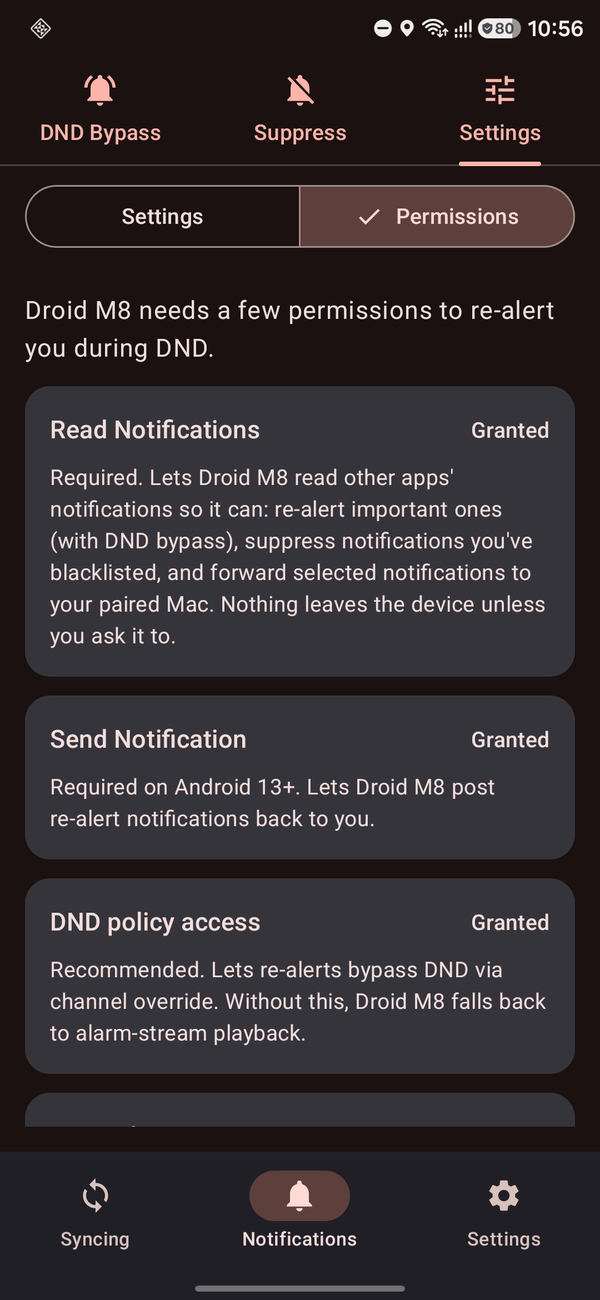
Tap Notifications in the bottom nav, then the Settings sub-tab, then the Permissions chip. Tap each row — Read Notifications, Send Notification, DND policy access — and approve in Android system settings.
- 6
Grant Full Disk Access on the Mac
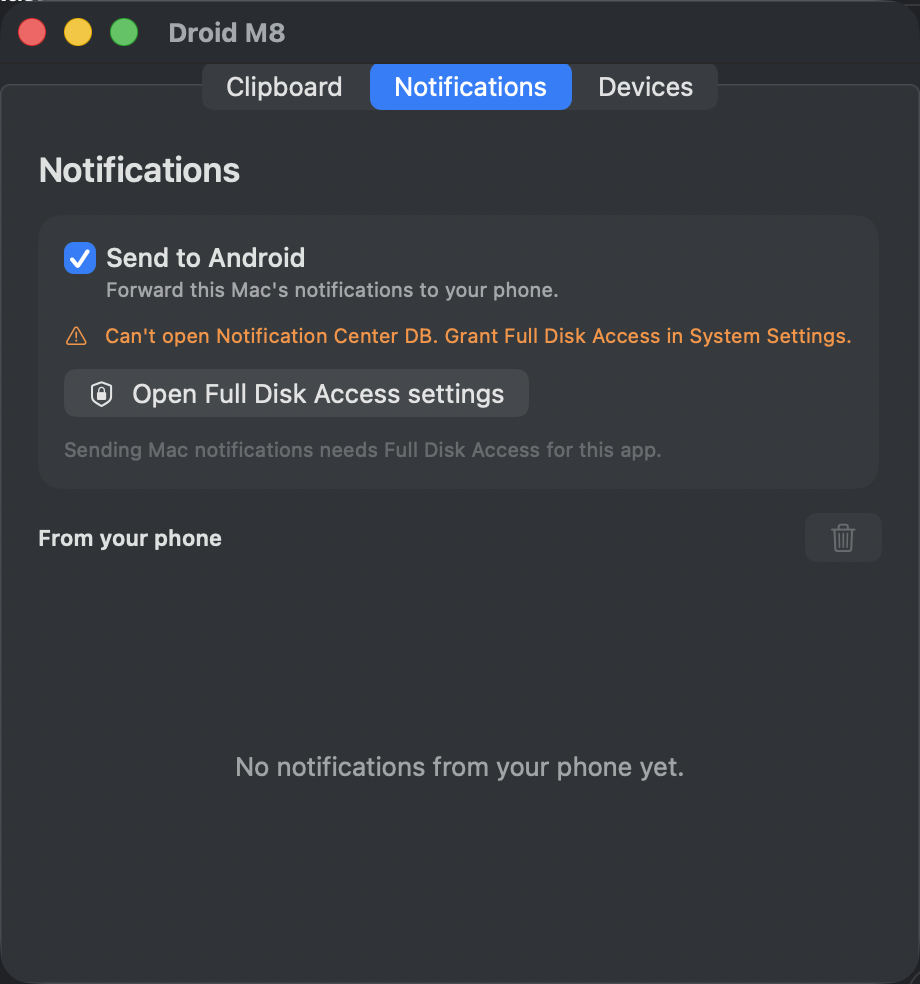
For Mac → Phone notification mirroring, the Mac app needs Full Disk Access (it reads macOS's notification database). Open the Notifications tab on the Mac → click "Open Full Disk Access settings" → toggle Droid M8 on.
- 7
You're paired — copy & paste across devices
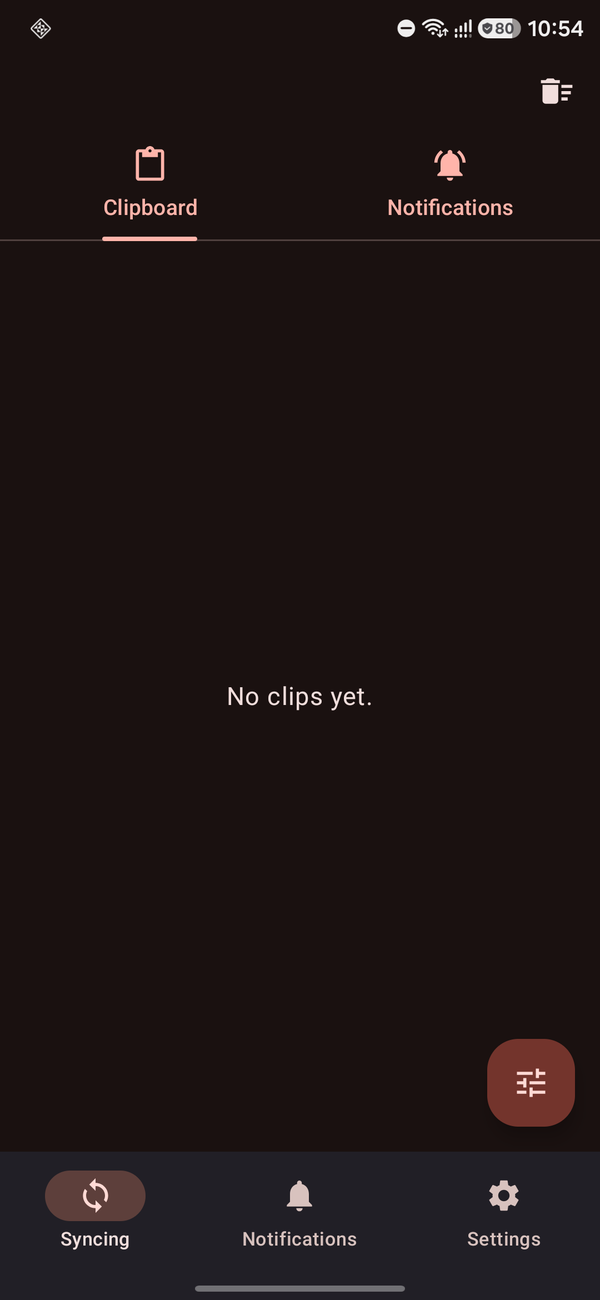
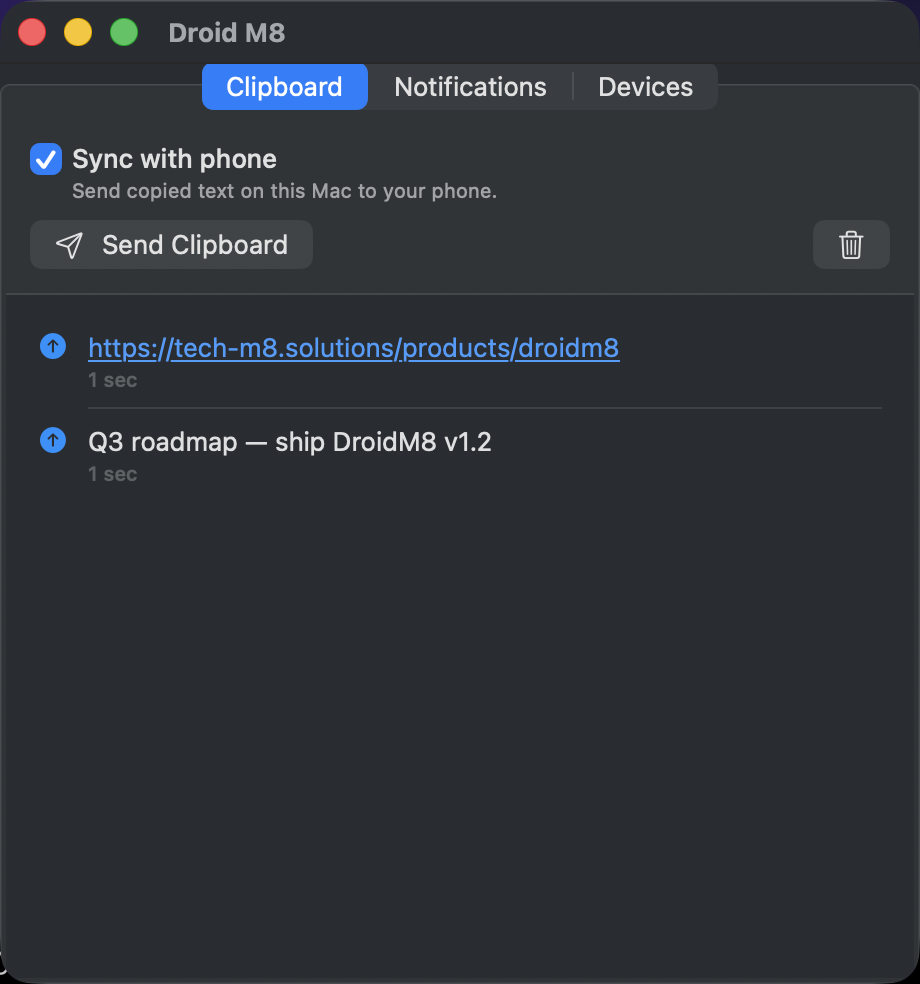
Copy text on either device — it shows up on the other within a second, end-to-end encrypted with your PIN. The Clipboard tab on either side keeps a history you can re-copy or resend.
- 8
Bonus: DND-bypass rules
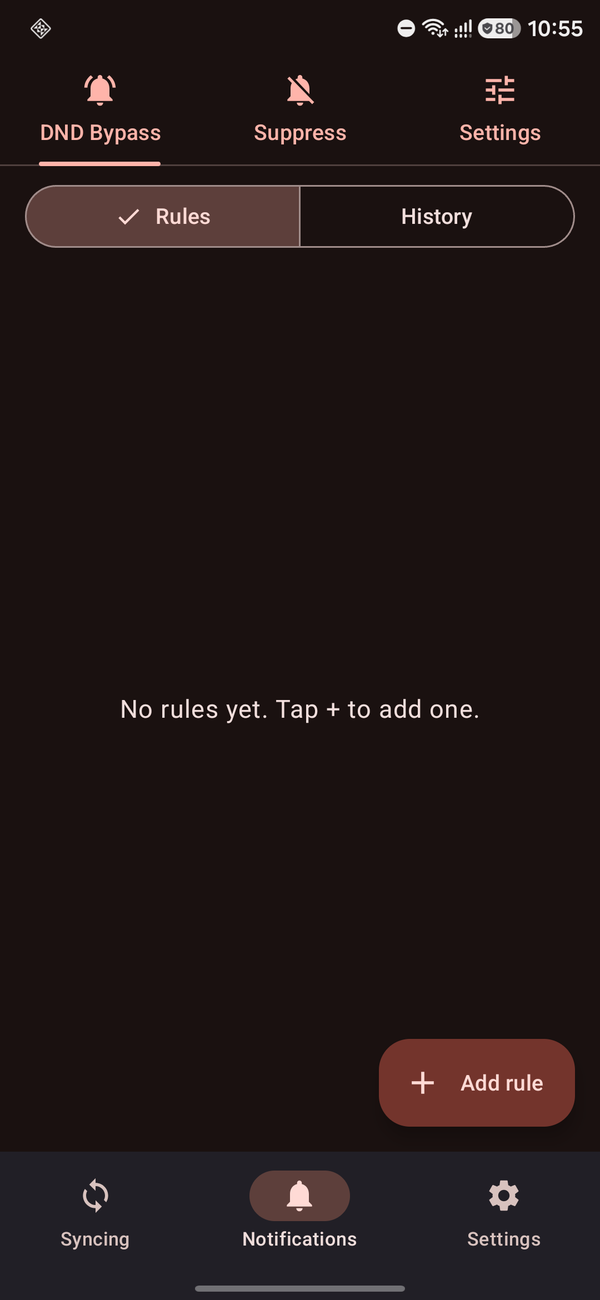
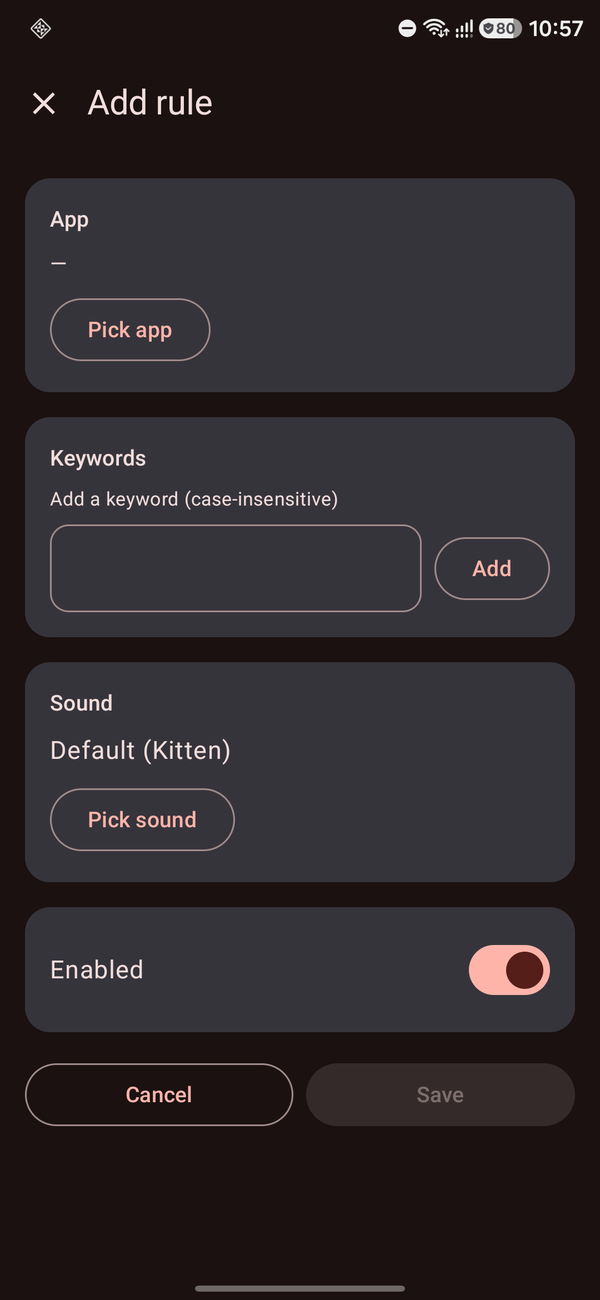
Add a rule under Notifications → DND Bypass to make specific apps + keywords re-alert your phone even when Do Not Disturb is on. Pick the app, add keywords, pick a sound.
- 9
Bonus: suppress noisy apps + back up rules
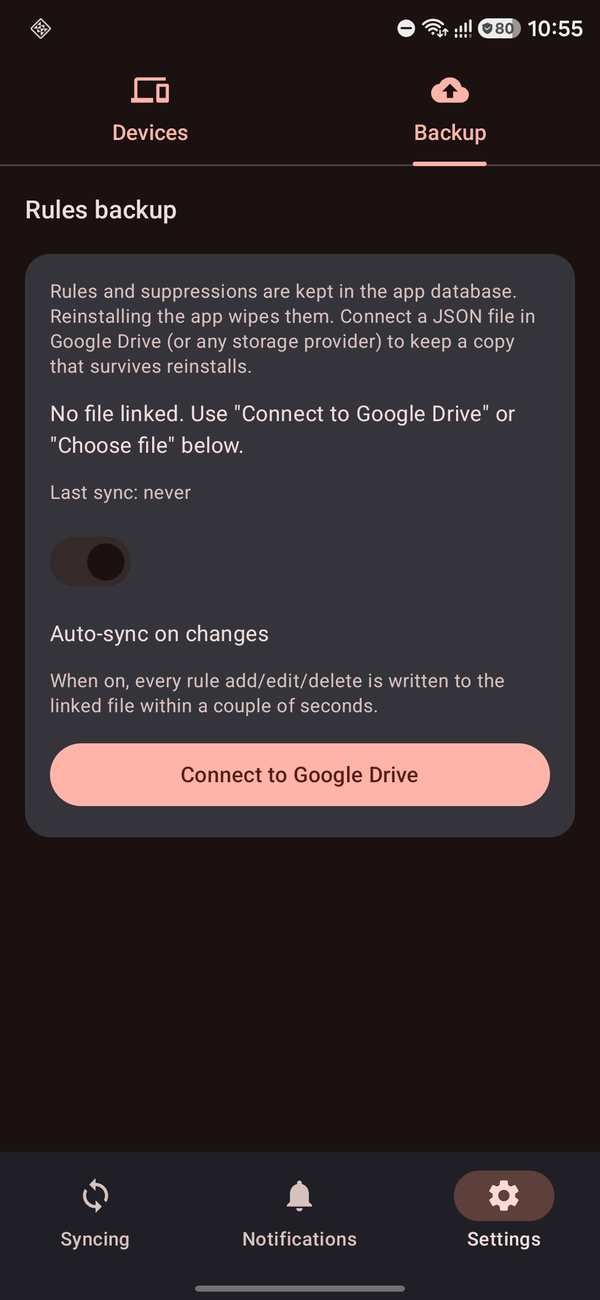
Suppress quietly cancels notifications from chosen apps and logs them to history. Backup writes your rules to a JSON file on Google Drive so reinstalling doesn't wipe them.